Picture this: you've just kicked back to stream the Knights game, but instead of the opening whistle, you're staring at the dreaded buffering wheel. To get that signal humming, you'll need to find the sweet spot for your router, tackle interference from walls and appliances, and maybe even look at gear like a mesh system or WiFi extender to kill off those dead zones.
Is Your WiFi Slower Than the M1 on a Long Weekend?
Nothing torpedoes a good mood faster than a dodgy internet connection. One minute you’re deep in a work call, the next your screen is frozen, and you sound like a glitchy robot. It’s a classic Aussie struggle, whether you're in a multi-level Sydney terrace, a sprawling Central Coast home, or a classic brick-and-tile in Newcastle.
But here's the good news: it's not always your NBN connection to blame. More often than not, the real villain is your own WiFi setup. The signal gets easily smothered by everyday things you probably haven't even considered.
Why Your Signal Is Letting You Down
A weak signal usually boils down to a few common culprits. Working out what’s causing the issue is the first real step to fixing it for good. Before you start shifting furniture around or reaching for your wallet, let’s look at what might be standing in the way of a solid connection.
The usual suspects include:
- Physical Obstacles: Think thick brick walls, chunky metal filing cabinets, or even that big fish tank in the living room. They all do a great job of blocking or weakening WiFi signals.
- Device Interference: Your neighbour's router, the microwave zapping your leftovers, and even your cordless home phone can all be fighting for the same airwaves, creating a mess of signal chaos.
- Router Placement: Shoving your router in a cupboard or at the far end of the house is hands down the number one cause of dead zones.
"Think of your WiFi signal like a lightbulb. If you hide it under a bucket in the corner of the house, you can’t expect it to light up every room. Central, high, and unobstructed is always the goal."
It's worth remembering that the NBN itself is getting much faster. The latest ACCC data reveals that network upgrades have bumped up peak-hour download speeds by nearly 20% on some of the top-tier plans. This means the connection coming into your home is likely stronger than ever. The real challenge is making sure your internal network can actually handle that speed.
The best part? You don't need to be a tech guru to sort this out. Many of these problems can be fixed with a few simple tweaks that won't cost you a cent. Getting a handle on how your home network actually works is the key, and you can learn more about how professional WiFi and telecommunications setups can make sure you're getting the speed you pay for.
Finding the Sweet Spot for Your Router
Let’s be honest, you wouldn't stick your brand new telly behind the couch, would you? So why is your router shoved in a dark cabinet, gathering dust? Your router's location is probably the biggest and easiest win for boosting your WiFi signal, and the best part is, it costs nothing to fix. Getting this right can mean the difference between flawless streaming and staring at the buffering wheel of doom.
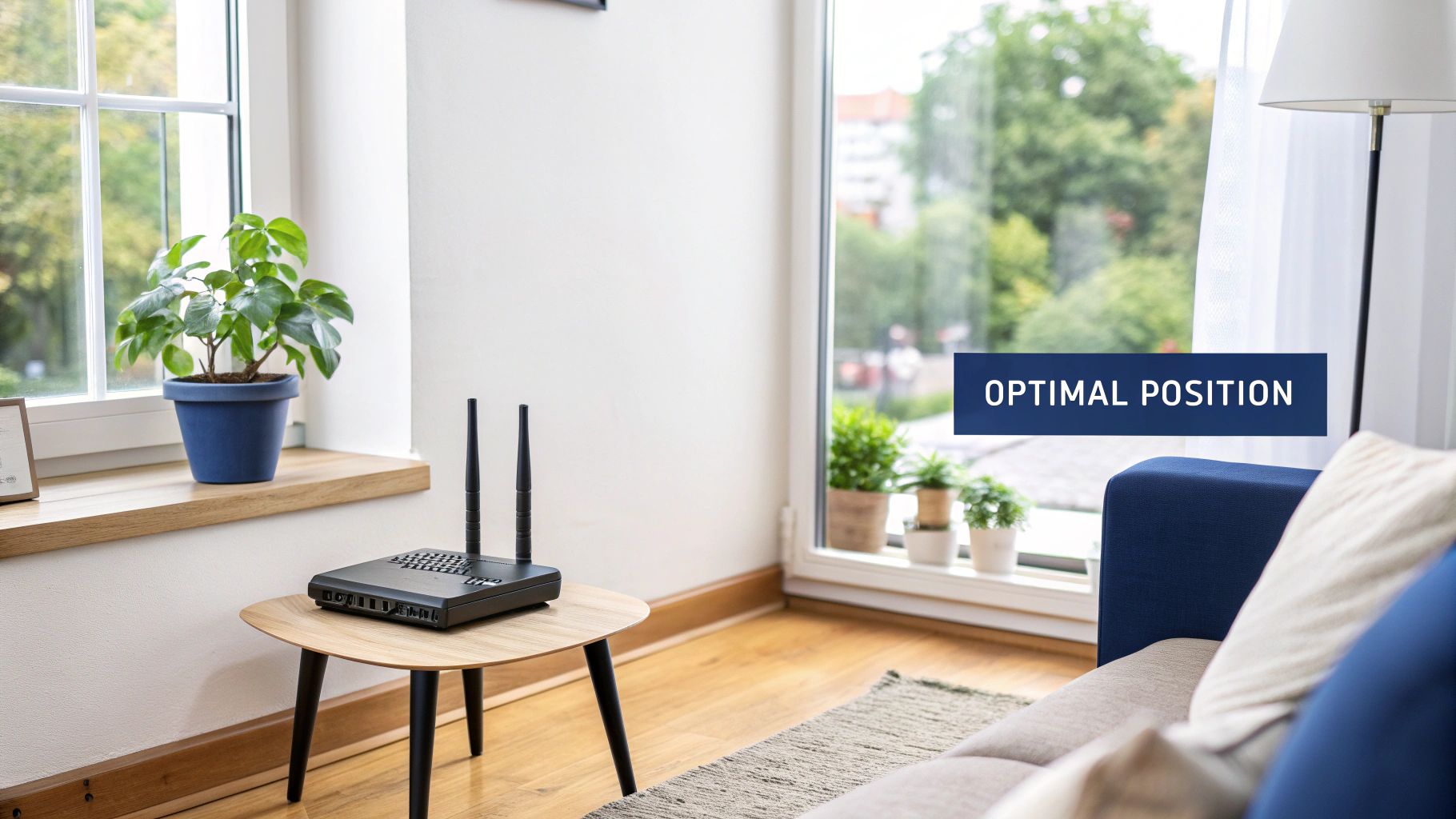
Think of your WiFi signal like a lightbulb. You want it somewhere central, where its light can reach every corner of the house. Hiding it away is like putting that lightbulb under a bucket—you're just creating shadows, or in this case, those dreaded WiFi dead zones.
The Best Spots in a Typical Aussie Home
Whether you’re in a multi-level duplex in Sydney or a sprawling single-storey place up on the Central Coast, the same principles apply. Think central and elevated.
- Up High is Key: WiFi signals travel downwards and outwards. Popping your router on a high shelf or the top of a bookcase gives it a much better line of sight to all your devices.
- Central Hallway or Landing: Placing it in the middle of your home helps distribute the signal evenly. For a two-storey home, a second-floor landing is often the perfect command centre.
- Living Room (with a catch): This is often a good central spot, but you need to keep it away from other electronics. Don't hide it in the TV cabinet next to the PlayStation, soundbar, and Foxtel box. All that electronic noise can interfere with the signal, so give your router some breathing room.
For more tailored advice on setting up your network, you might be interested in our expert tips on optimising Wi-Fi and home networks.
The Absolute Worst Places for Your Router
Now for the fun part: the WiFi signal killers. Some of these might surprise you, but they are notorious for smothering your signal and slowing everything down.
Don't make the mistake of hiding your router for aesthetic reasons. A visible router with a strong signal beats a hidden one that can't even load a webpage any day of the week.
Avoid these locations like the plague:
- The Kitchen: This is a Bermuda Triangle for WiFi. Microwaves operate on a similar frequency and are a massive source of interference. Big metal appliances like fridges and ovens are also fantastic at blocking signals.
- Next to Fish Tanks: It might sound odd, but water is surprisingly effective at absorbing WiFi signals. That beautiful aquarium could be the very reason the back room has no connection.
- Beside Double-Brick Walls: Those classic Newcastle brick homes are solid, but they’re also WiFi’s worst enemy. Every brick wall the signal has to punch through weakens it significantly.
- In a Corner or Cupboard: Tucking it away at one end of the house means the signal has to travel much further to reach the opposite side, often failing before it even gets there. Out of sight, out of mind, and out of range.
Simple Router Tweaks That Make a Big Difference
Diving into your router’s settings can feel a bit like trying to find parking at Westfield on a Saturday arvo. But trust me, a few simple clicks in the right place can seriously boost your WiFi signal and get your internet humming along nicely. You don't need a degree in IT, just a bit of patience and a willingness to poke around.
Most of the magic happens in what’s called the router admin panel. This is the control centre for your home network. Think of it as the fuse box for your internet—a bit mysterious at first, but powerful once you know which switches to flick. The goal here is to optimise how your router broadcasts its signal, cutting through the noise from your neighbours' networks.
Finding an Empty Lane on the WiFi Highway
Imagine the M1 at peak hour. Every lane is clogged, and traffic is crawling. That's what the WiFi channels in your neighbourhood can look like, especially if you're in a dense apartment block or a packed suburban street. Every router is shouting on the same frequency, creating a massive digital traffic jam.
A quick fix is to manually change your WiFi channel. Most routers are set to 'Auto' by default, which sounds smart, but they don't always pick the least congested option. By logging into your router, you can often find a network analysis tool that shows you which channels are being overused.
Switching to a quieter channel—like 1, 6, or 11 on the 2.4 GHz band, as these don't overlap—is like finding a completely empty express lane. Suddenly, your connection is smoother because it's not fighting for space.
This is just one piece of the puzzle. Getting your hardware and signal aligned is crucial.
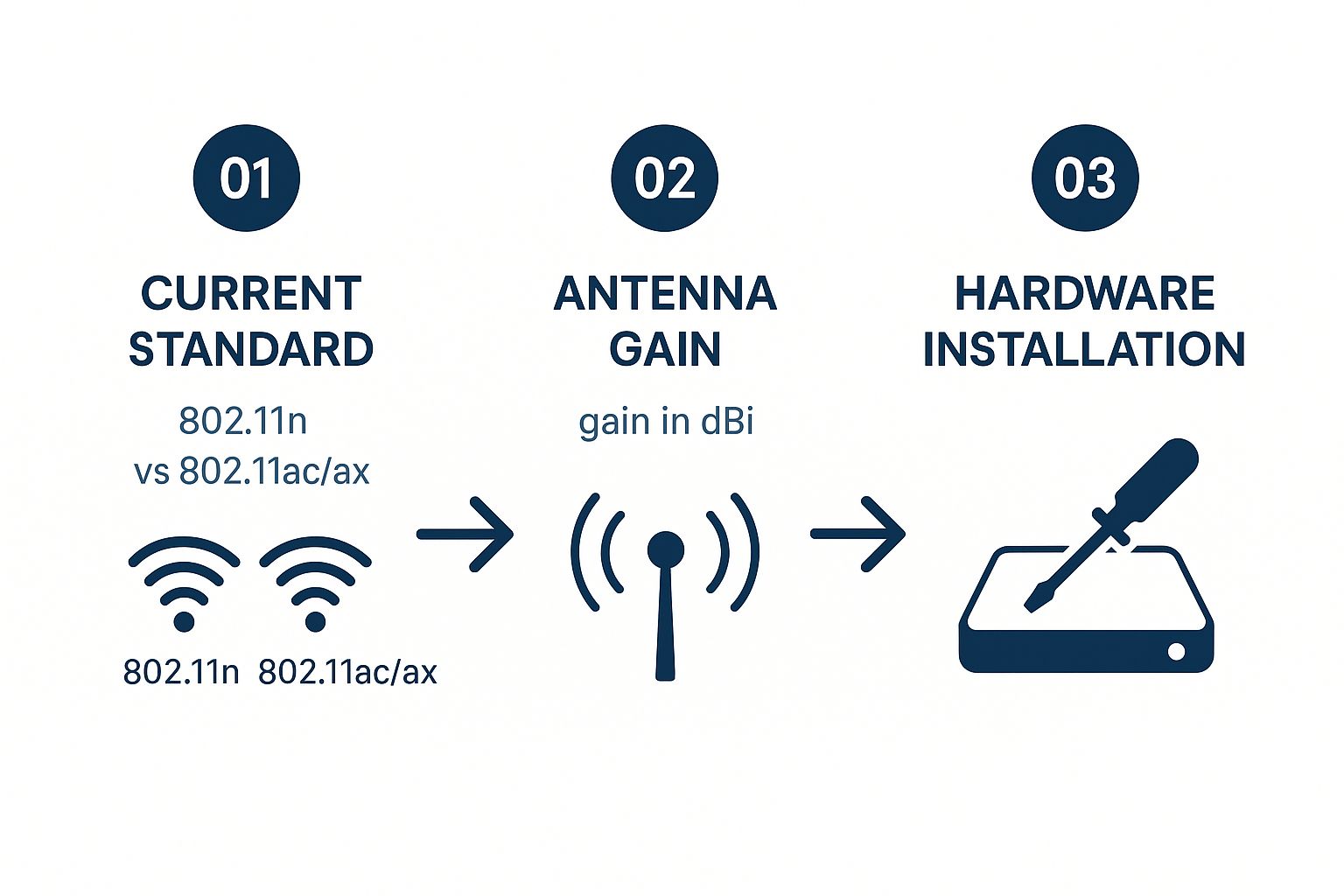
As you can see, moving to modern standards like 802.11ac (WiFi 5) or 802.11ax (WiFi 6), combined with better antennas, makes a huge difference.
The Ute vs. The Sports Car: Your 2.4 GHz and 5 GHz Bands
Another game-changing tweak is choosing the right WiFi band for the right device. Most modern routers broadcast two signals: 2.4 GHz and 5 GHz.
Here’s a simple way to think about them:
- The 2.4 GHz band is your trusty ute. It’s a bit slower, but its signal travels much further and is way better at punching through walls and floors.
- The 5 GHz band is the sports car. It's ridiculously fast and has more channels, so it’s less crowded. The catch? Its range is shorter, and it really struggles with obstacles like brick walls.
So, how do you know which one to use? This table breaks it down.
2.4 GHz vs 5 GHz Which WiFi Band Should You Use?
| Feature | 2.4 GHz Band (The Ute) | 5 GHz Band (The Sports Car) |
|---|---|---|
| Speed | Slower, but fine for browsing and email. | Much faster, perfect for 4K streaming and gaming. |
| Range | Excellent. Covers a larger area and gets through walls better. | Shorter. Works best in the same room as the router. |
| Interference | Very crowded. Microwaves and cordless phones can cause issues. | Less crowded, leading to a more stable connection. |
| Best For | Phones, smart home devices (lights, plugs), anything far from the router. | Smart TVs, gaming consoles, laptops used for video calls. |
By default, many routers combine these two bands under a single network name, letting your devices decide which one to use. This often leads to your laptop clinging to the slower 2.4 GHz band even when the zippy 5 GHz one is available right next to it.
The solution? Log into your router settings and give the bands different names (e.g., ‘Smith_Family_WiFi’ and ‘Smith_Family_WiFi_5G’). This gives you full control. You can manually connect your high-performance gear to the sports car and leave the ute for everything else.
While you're in there, it's a great time to check your security settings. For a deeper dive, check out our guide on how to properly secure your WiFi network to keep freeloaders from slowing you down.
When Is It Time to Upgrade Your Gear?
Look, sometimes you can tweak and reposition your trusty old router all you want, but it just isn't going to cut it anymore. It's a bit like trying to win the Bathurst 1000 in your grandpa’s old Holden—a champion in its day, sure, but today’s demands need a bit more grunt under the bonnet.
If your router is a few years old, it simply wasn't designed for a home packed with smart speakers, 4K TVs, and multiple people video conferencing at the same time. The technology has just moved on.
And it’s moving fast. The Australian government is pouring $3 billion into upgrading the National Broadband Network, rolling out fibre to heaps more homes and businesses. We're talking speeds up to 1 Gbps. But if your gear at home is ancient, all that new potential is wasted. It’s like putting Ferrari-grade fuel into a lawnmower. To get a better picture of what's coming, you can read up on how Australia's internet speeds are evolving on TechHero.com.au.
When you hit that wall, it's time to think about investing in some new hardware. The good news? You’ve got a couple of solid options that won’t break the bank.
WiFi Extenders: The Quick Fix
A WiFi extender, sometimes called a repeater, is easily the simplest and cheapest way to patch up a dead zone. Just think of it as a band-aid solution. It catches your existing WiFi signal and then throws it out again, pushing the coverage a little further into your house.
It's a bit like shouting from one room to another to relay a message. The person in the next room might hear you, but the message could be a bit distorted, and it's certainly not as clear as hearing it firsthand.
They're a great fit for:
- Smaller homes or apartments: Perfect when you just need to get a signal to that one tricky spot, like a back bedroom or study.
- When you're on a tight budget: You can grab one for as little as $50, so it’s a low-risk way to see if it solves your problem.
- Connecting low-demand devices: Ideal for getting a signal to a smart light or a security camera that doesn't need blazing-fast speeds.
The main catch with an extender is that it usually creates a separate network. Even worse, it can halve your potential speed because it has to receive and transmit on the same channel. It's a fix, but it's far from a perfect one.
Mesh Systems: The Whole-Home Solution
If an extender is like shouting, then a mesh WiFi system is like having a perfectly clear, seamless conversation in every single room. Instead of one router trying to do all the heavy lifting, a mesh system uses a main router and several satellite "nodes" that you place around your home.
These little nodes all talk to each other, blanketing your entire property in one powerful, unified WiFi network.
The best part? As you walk around, your phone or laptop just automatically hops to the strongest node without you ever noticing a drop. It’s the ultimate set-and-forget fix for killing dead zones for good.
Mesh is the way to go for:
- Larger or multi-storey homes: Especially those classic double-brick Aussie houses that are notorious WiFi-killers.
- Households with tons of devices: When you've got kids gaming, someone streaming Netflix, and another person on a Zoom call, all at once.
- Getting rid of dead zones entirely: If you want rock-solid WiFi in the garage, the back garden, or even the shed.
Mesh systems do cost more, usually starting around the $200 mark, but the performance is in a completely different league. If you're still on the fence, we've done a full breakdown of the differences between a WiFi extender and a mesh system that can help you figure out what’s right for your place.
Advanced Tricks for Maximum Internet Speed
Alright, you’ve sorted out the router’s location and tinkered with the basic settings. Now it’s time to pop the bonnet and really squeeze every last drop of performance out of your connection. These next-level tricks are for anyone who wants to go from a decent connection to a genuinely fast one.
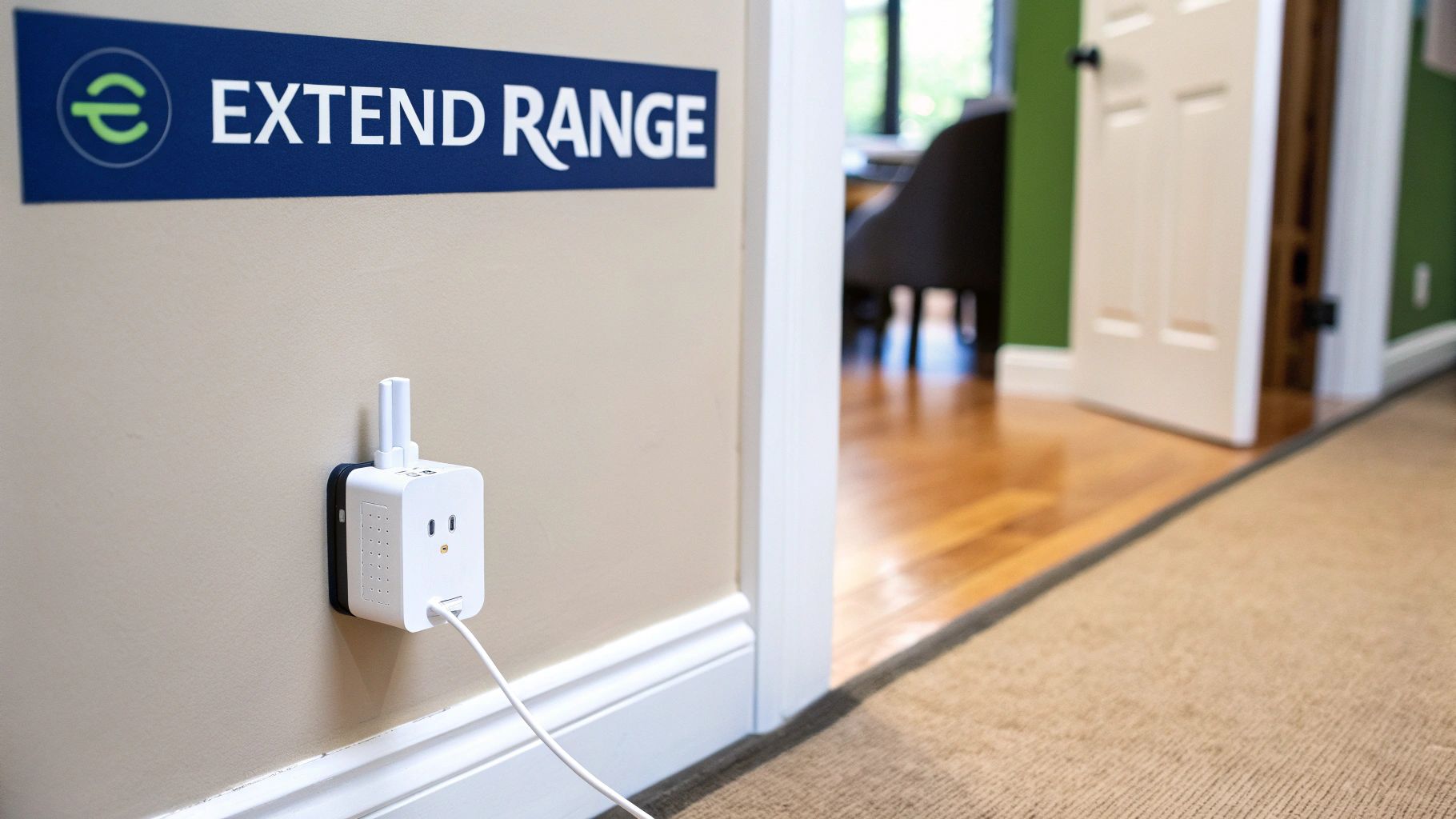
First up, let's talk about your router's firmware. Think of it as the operating system for your router, just like Windows or macOS on your computer. Manufacturers regularly release updates that patch security holes, squash annoying bugs, and often improve overall performance and speed. Updating it is usually a simple click inside your router’s admin panel and can give your network a noticeable kick.
Prioritise What Matters Most
Ever been on a crucial Zoom call when someone in the next room starts a massive download and your video freezes into a pixelated mess? That’s where Quality of Service (QoS) settings come in. It’s a brilliant feature that lets you create a VIP lane on your internet highway.
You can actually tell your router to prioritise traffic for specific activities, like video conferencing or online gaming, ensuring they always get the bandwidth they need. This means your work call stays silky smooth even if the kids are hammering Netflix in 4K. It’s the ultimate way to manage a busy household or small office network.
By setting up QoS, you're essentially becoming the traffic controller for your own internet. You decide which data gets the green light first, which is a game-changer for anyone working from home or serious about their gaming.
Go Wired for Ultimate Speed
Here's an old-school trick that’s still king for a reason: the humble Ethernet cable. While WiFi is incredibly convenient, nothing beats a direct, wired connection for pure speed and rock-solid stability.
For your stationary, high-demand devices—like a smart TV, a PlayStation, or your main work computer—plugging them directly into the router is a guaranteed way to boost your WiFi signal for everything else. By taking these heavy-hitters off the wireless network, you free up a huge amount of WiFi bandwidth for your mobile devices like phones and tablets.
If you need reliable connections in multiple rooms, a professional can help run cables cleanly through your walls. It’s a surprisingly neat solution. You can find out more by reading our guide on the benefits of structured data cabling installation.
This strategy is especially effective as Australia's background infrastructure improves. The nationwide 5G rollout, now covering about 95% of the population, is strengthening the fixed wireless connections that many homes rely on. With Optus leading average 5G speeds at 212.3 Mbps, a solid backhaul means your home network simply has more speed to play with. You can discover more insights about Australia's mobile network performance on OpenSignal.com.
Your Top WiFi Questions Answered
Still got a few questions rattling around your head? No worries. We've put together answers for some of the most common queries we hear from folks around the Central Coast, Sydney, and Newcastle who are just trying to get the solid WiFi they're paying for.
It's a familiar story: you sign up for a zippy NBN plan, but the reality inside your house feels more like dial-up. Let's clear up a few things.
Does Moving My Router Actually Work?
One hundred percent, yes. We've mentioned it before, but it bears repeating because it's the biggest, cheapest, and easiest fix you can try.
Think of your router's signal like a speaker in a room. If you stick it in a cupboard at the far end of the house, you'll struggle to hear it everywhere else. Moving it to a central, elevated spot is the single most effective thing you can do to boost your WiFi signal right away.
Will a WiFi Extender Slow Down My Internet?
This is a great question, and the answer isn't always straightforward. A standard WiFi extender or repeater can halve your potential speed. It's because it has to use the same channel to both listen to your main router and then talk to your devices, creating a bit of a bottleneck.
It's a trade-off. You might get a slower connection in that back room, but at least you'll have a connection where there was none before. Mesh systems, on the other hand, are a different beast. They use a dedicated, hidden channel for the nodes to talk to each other, leaving the main bandwidth free for your gadgets.
Can My Neighbour's WiFi Interfere with Mine?
You bet it can. If you're in a crowded Sydney apartment block or a tight-knit suburban street in Newcastle, your router is probably fighting for airtime with dozens of others. This "signal traffic jam" is a massive cause of slow, unreliable connections.
This is exactly where changing your WiFi channel comes in handy. It’s like finding a quiet side street to avoid the peak hour rush on the M1. A simple WiFi analyser app on your phone can show you which channels are clogged and help you pick a clearer one.
The most common WiFi frustration we hear is from people in apartment buildings. They have a fast NBN plan but a slow connection because everyone's router is screaming on the same channel. A quick channel switch can be a game-changer.
Do I Really Need to Upgrade My Old Router?
Look, if your router came free from your internet provider more than three or four years ago, then the answer is probably yes. Technology moves incredibly fast, and older routers just weren't built for a modern Aussie household with multiple 4K streams, video calls, and a dozen smart devices all demanding bandwidth.
Upgrading to a newer router that supports modern standards like WiFi 6 (802.11ax) is a huge leap forward. It’ll give you:
- Faster speeds and much greater capacity for lots of devices.
- Better performance, especially in crowded WiFi environments.
- Improved security features to keep your network safe.
Think of it as the difference between an old ute and a new family SUV. Both will get you there, but one is much better equipped to handle a full load and a long journey comfortably.
Still battling dead zones and buffering screens? The team at Advanced Comtech has over three decades of experience designing and installing rock-solid data and WiFi solutions for homes and businesses. We'll sort out your connection for good, so you get the speed you pay for, everywhere you need it. https://advancedcomcomtech.com.au