Think of securing your Wi-Fi as chucking the deadbolt on your front door. You wouldn’t just leave it wide open for any Tom, Dick, or Harry to wander in, right? The digital equivalent starts with changing your router’s default login details, flicking on WPA3 encryption, and creating a strong, unique password. These are the basic, non-negotiable first steps to keep snoops and freeloaders out.
Why Your Open Wi-Fi Is a Hacker’s Playground
Ever had your internet grind to a halt at the worst possible moment? We once heard a classic story from a bloke in Newcastle whose connection would magically die every weekend, right around kick-off for the Knights game. It took him ages to figure out his neighbour was streaming the entire NRL season on his dime, all because the Wi-Fi was left completely open.
But it’s not just about cheeky neighbours slowing down your Netflix binge.
An unsecured network is a bright, flashing welcome sign for real trouble. For a scammer sipping a flat white in a Sydney cafe, it’s a golden ticket to your bank details. For someone shady on the Central Coast, it’s a free pass to use your connection for illegal downloads, leaving you to cop the blame.
Leaving your Wi-Fi open is pretty much the same as leaving your front door unlocked with a sign on it saying, “Come on in, help yourself!”
The Real Dangers Lurking on an Unsecured Connection
It’s all too easy to have that “she’ll be right” mindset, but the risks are a lot more real and closer to home than you’d think. An unprotected network lets anyone within range peek over your digital shoulder and see exactly what you’re doing online.
And we’re not just talking about someone spotting your embarrassing Google searches. The genuine risks are far more serious:
- Data Theft: Cybercriminals can easily intercept your passwords, credit card numbers, and private messages as they travel across the network.
- Malware Infections: Attackers can use your open connection as a backdoor to push viruses and even ransomware onto your computers and phones.
- Illegal Activity: Your internet connection could be used for all sorts of criminal acts, and because it’s your network, it’ll look like you’re the one responsible.
This isn’t just a niche problem; it’s a massive issue right across the country. In fact, a recent report found that a staggering 94% of Australian wireless networks were poorly protected against common cyber-attacks, putting homes and businesses at huge risk. You can read more about these wireless network vulnerabilities to see just how big the problem is.
Securing your Wi-Fi isn’t just another tech chore to add to the list. It’s fundamental to protecting your privacy, your money, and your peace of mind. A few simple tweaks are often all that stands between a safe online experience and becoming an easy target.
Ditch Your Router’s Default Logins
Right, let’s get our hands dirty. Your router is the control centre of your digital life—the bouncer at the door to everything you do online. Yet, most of us leave the keys sitting right under the doormat by using the default username and password printed on the sticker.
Imagine a thief trying every house on a street and finding half the doors open with the exact same key. That’s what you’re doing when you leave “admin” and “password123” as your router’s login details. It’s the very first thing a hacker will try, making their job ridiculously easy.
Changing these defaults is one of the quickest and most effective security wins you can get. It’s a simple action that puts a solid lock on your digital front door.
Diving Into Your Router’s Brain
To make these changes, you need to get into your router’s administrative panel. Think of it as the master control room for your internet. It might sound a bit techy, but it’s usually pretty straightforward.
- Find Your Router’s IP Address: This is its unique address on your home network. It’s often printed on the back of the router itself, but common ones include
192.168.1.1or192.168.0.1. - Log In: Pop that address into your web browser. You’ll be greeted by a login screen asking for a username and password—this is where you’ll use the default ones from the sticker for the last time.
- Find the Security Settings: Once you’re in, have a poke around. Look for a section labelled “Administration,” “Security,” or “System.” This is where you’ll find the option to change the router’s login credentials.
Pro Tip: Don’t just change the password. Create a new, unique username as well. If the default is “admin,” changing it to something random makes it twice as hard for someone to guess their way in.
Here’s a quick look at why the standard logins are a bad idea and what makes a strong, secure replacement.
Default Router Logins vs. Your Secure Upgrades
| Security Element | The Default Risk | Your Secure Fix |
|---|---|---|
| Username | Usually “admin,” “user,” or blank. Super predictable. | A unique name only you know, like “GalacticPrez” or “NotTheAdmin”. |
| Password | Often “password,” “1234,” or the same as the username. Basically an open invitation. | A long, complex passphrase with a mix of letters, numbers, and symbols. Think !C0ff33Mak3sM3Sm!le?. |
| SSID (Wi-Fi Name) | “Telstra-ABCD” or “Optus-1234” tells attackers your provider and maybe even your router model. | Something fun and anonymous that reveals nothing about you, like “The Batcave” or “Pretty Fly for a Wi-Fi”. |
See the difference? Moving away from the defaults instantly makes you a much harder target.
Once you’ve updated your router’s login, the next job is to change the name of your Wi-Fi network itself, known as the SSID (Service Set Identifier). A generic network name is like a big signpost advertising who your provider is, which can give potential attackers a head start.
Change it to something that doesn’t give away personal info. “Dave’s WiFi” is out, but something creative is perfect. It’s a small step that makes you less obvious.
This quick summary shows the different levels of protection you can enable for your network.
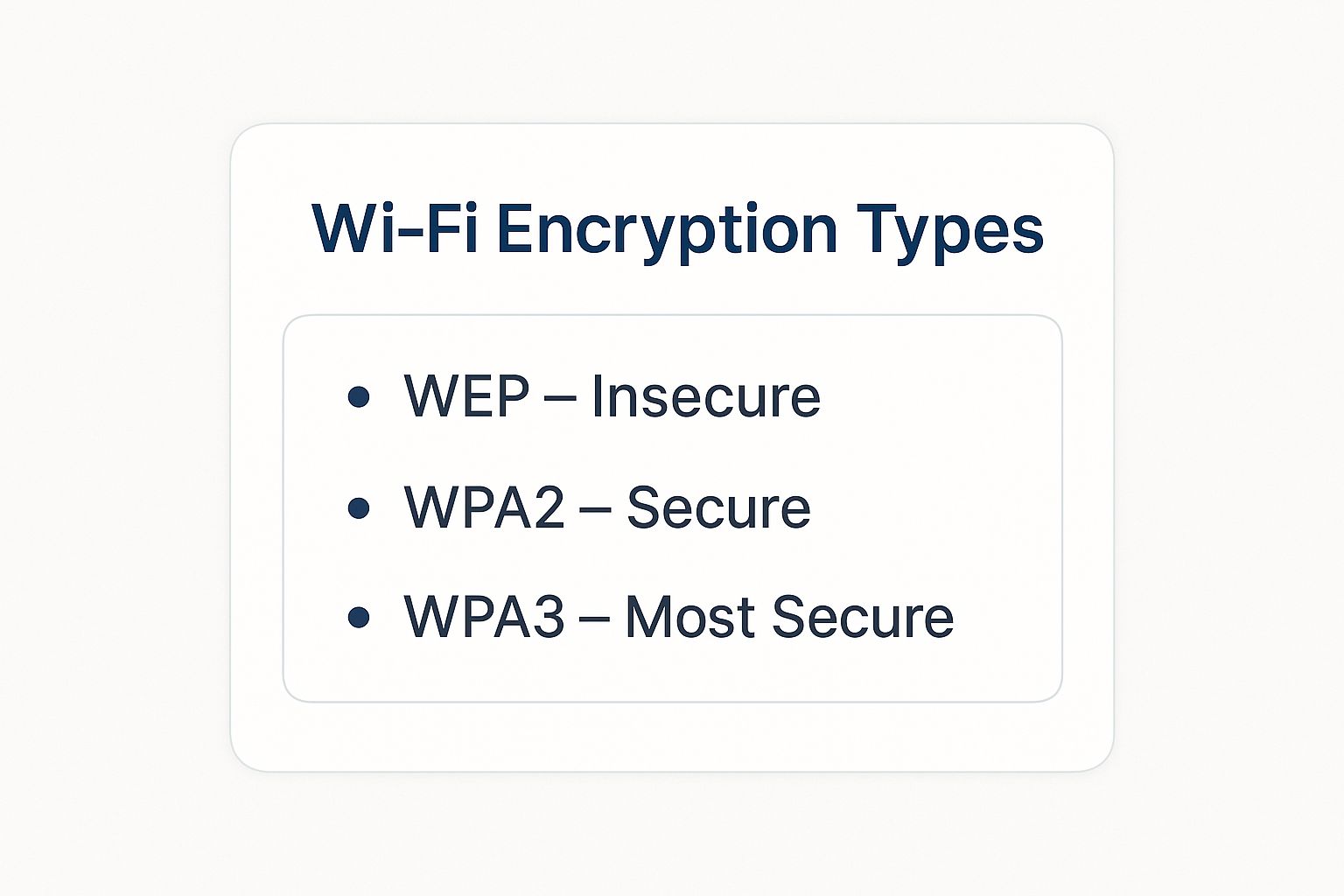
The infographic clearly shows that WPA3 is the gold standard for security, making it the best choice to protect your connection if your router supports it.
With remote work and smart homes becoming the norm, these security layers are more important than ever. As of January 2025, a massive 26.1 million Australians—about 97.1% of the population—were active internet users. This highlights just how crucial it is to properly configure routers to fend off cyber threats across the country. You can find more details about Australia’s growing internet usage on GlobeNewswire.
Choosing the Right Wi-Fi Encryption
Alright, let’s get into the guts of it: encryption. Think of this as the high-security deadbolt on your digital front door. If you’ve ever poked around in your router’s settings, you’ve probably seen a jumble of letters like WEP, WPA2, and WPA3. It’s enough to make your eyes glaze over, but getting this right is non-negotiable for a secure Wi-Fi network.
These acronyms are just different security standards, each a bit tougher than the last. Picking the right one is the difference between locking your data in a bank vault and just hoping for the best behind a flimsy screen door.
From Screen Doors to Bank Vaults
Let’s quickly run through the options, without all the technical jargon.
-
WEP (Wired Equivalent Privacy): This is the old, rusty lock on a garden shed. It was a decent idea way back in the dial-up days, but now, any script kiddie with a YouTube tutorial can crack it in minutes. If your network is still on WEP, consider it a massive, flashing red flag.
-
WPA2 (Wi-Fi Protected Access 2): For a long time, this was the industry standard—a solid, reliable deadbolt. It’s still widely used and offers pretty good protection for most homes. That said, vulnerabilities have been found over the years, so it isn’t the fortress it once was.
-
WPA3 (Wi-Fi Protected Access 3): Now we’re talking. This is the modern bank vault. It’s the latest and greatest in Wi-Fi security, offering far superior protection against brute-force attacks and making it much, much harder for anyone to snoop on your connection. If your router supports WPA3, you should absolutely be using it.
A few years back, we worked with a small boutique cafe in Surry Hills that learned this lesson the hard way. They were still running their customer Wi-Fi on an ancient WEP-enabled router. A hacker simply sat outside, broke through the weak encryption with ease, and started siphoning off customer credit card details being processed over the network. The fallout was devastating for their reputation—and a costly reminder of why old security is no security at all.
Making the Switch to a Stronger Protocol
So, how do you check what your network is using and get it upgraded? The process is pretty similar to changing your router’s login details.
You’ll need to log into your router’s admin panel by typing its IP address into your web browser. Once you’re in, hunt around for a section labelled “Wireless,” “Security,” or “Wi-Fi Settings.”
In this menu, you should find a dropdown list for “Security Mode” or “Encryption Type.” This is where you can see if you’re on WEP, WPA2, or WPA3. Your goal is simple: select the highest number available.
If WPA3 is an option, that’s your winner. If not, WPA2 is your next best bet. Whatever you do, never use WEP or leave your network “Open.”
After selecting the strongest option, save your settings. Your router will probably restart, and you might need to reconnect your devices with the same Wi-Fi password. It’s a five-minute job that gives your security a massive boost.
Keep Your Router Firmware Updated
You probably update the apps on your phone without a second thought. That little red notification pops up, you tap ‘Update All’, and you get on with your day. So, let me ask you: when was the last time you updated your router?
If the answer is “never,” you’re not alone. But your router’s software, known as firmware, is the brains behind your entire home network. And just like any other software, cybercriminals are constantly poking and prodding it, looking for weaknesses to exploit. Firmware updates are the patches that plug those security gaps.
Ignoring them is like leaving the key under the doormat—it’s a risk you just don’t need to take. The good news is, most modern routers have an ‘auto-update’ feature you can simply switch on.
Finding and Installing Crucial Updates
Getting this sorted is usually a quick job. First, you’ll need to log in to your router’s admin panel (the same place you went to change your password).
From there, look for a section labelled “Firmware,” “Administration,” or “Router Update.” You should see a button that says something like “Check for Updates.” Give that a click. If it finds a new version, just follow the on-screen prompts to install it. The router will restart, and you’ll be back online in a few minutes with a much more secure connection. It’s a simple bit of maintenance that can save you a world of hurt.
What Is a Router Firewall and Should You Use It?
While you’re poking around in the settings, you’ll probably spot an option for a “firewall.” A lot of people see this and get a bit spooked, thinking they might break their internet if they touch it.
But a firewall is one of your best friends when it comes to security.
Think of it as a bouncer for your network. It stands at the digital door, checking every bit of incoming traffic. If it spots anything dodgy or unauthorised trying to sneak in, it blocks it on the spot. It’s your first line of defence against all sorts of online nasties.
Your router’s firewall is designed to block malicious traffic from reaching your devices. In most cases, it’s enabled by default, but it’s always worth double-checking to make sure it’s switched on and protecting your network.
This has become even more important with the explosion of smart devices in our homes. The rise in denial-of-service (DoS) attacks, partly fuelled by exploited Internet of Things (IoT) gadgets, really highlights the risk. The Australian Signals Directorate has noted a spike in these incidents, where compromised smart fridges and cameras are weaponised to attack organisations. You can read more about how compromised devices amplify these threats from CyberCX’s latest report.
Keeping your firmware updated and your firewall active is a crucial step in making sure your gear doesn’t become part of the problem.
Set Up a Guest Network for Mates
You’ve got the barbie sizzling, the esky is full, and your mates are starting to rock up. Sooner or later, someone’s going to ask the inevitable question: “Hey mate, what’s the Wi-Fi password?” It’s a classic moment, but just handing over the keys to your digital kingdom isn’t the smartest move.
Giving out your main Wi-Fi password is like giving your friends a key to your house that also unlocks your filing cabinet and your safe. Suddenly, their phones—and whatever dodgy apps or malware might be on them—are inside your trusted network, sharing space with your personal computers, smart speakers, and security cameras.
This is where a guest network comes in. It’s a brilliant feature on most modern routers that acts like a digital granny flat—completely separate from the main house. It gives your visitors internet access without letting them anywhere near your important stuff.
Why a Guest Network is a Game-Changer
Think of it as a sandboxed playground for your visitors. It’s a separate, isolated network that uses the same internet connection but keeps all traffic completely segregated from your primary network.
- Protect Your Devices: A guest network prevents visitors from “seeing” or accessing your personal devices like laptops, network-attached storage (NAS) drives, or even your smart TV.
- Contain Security Risks: If a mate’s phone has a virus, it stays contained within the guest network, unable to spread to your more critical equipment.
- Keep it Convenient: You can set a simpler, easy-to-remember password for your guest network (like
BunningsSnagsAreTops) without compromising the Fort Knox-level password on your main network.
This simple step is a core part of learning how to secure a wifi network properly, especially when you have people coming and going.
A guest network is the perfect solution for being a good host without being a bad security manager. Your mates can scroll through Instagram and stream the footy, and you can rest easy knowing your private stuff stays private.
How to Get Your Guest Wi-Fi Running
Setting one up is usually a piece of cake. The process is very similar to the other tweaks we’ve made in the router’s settings.
- Log Into Your Router: Pop your router’s IP address into a web browser and log in with your admin credentials.
- Find the Guest Network Settings: Hunt for a section called “Guest Network,” “Guest Access,” or something similar. It’s often found under the main “Wireless” or “Wi-Fi” settings.
- Enable and Configure It: Flick the switch to enable it. You’ll then be able to give it its own name (SSID), like “Waynes_World_Guest,” and set a unique password for it.
That’s it! In just a few clicks, you’ve created a secure, isolated bubble for your visitors. It’s one of the simplest yet most effective ways to bolster your home network security.
Your Wi-Fi Security Questions Answered
Still got a few things you’re wondering about? No worries, that’s completely normal. We’ve pulled together some of the most common questions we get from people on the Central Coast, in Sydney, and up in Newcastle about making their home internet more secure.
It’s easy to get bogged down in the tech talk of encryption, firmware, and guest networks. But honestly, just getting a handle on the basics is the biggest step you can take to protect your digital life. Let’s dive into a few of the big ones.
Should I Hide My Wi-Fi Network Name (SSID)?
Ah, the classic “hide your network” trick. The thinking goes that if you stop your router from broadcasting its name (that’s the SSID), hackers won’t even know it’s there. It seems to make sense, right? If they can’t see it, they can’t attack it.
In practice, though, it’s a bit like hiding your house keys under the welcome mat. It might deter someone who’s just casually looking, but anyone with a little bit of knowledge and a basic network scanner will find your “hidden” network in a heartbeat. It doesn’t really cause any harm, but it gives a false sense of security. Your time is much better spent creating a strong password and using WPA3 encryption.
Hiding your SSID is mostly security theatre. It looks like a clever move, but it won’t fool a determined attacker. Your real strength lies in top-notch encryption and a password that’s tough to crack.
How Often Should I Change My Wi-Fi Password?
Years ago, the standard advice was to change your passwords every 90 days. That thinking is a bit out of date now. Forcing people to constantly change their password often leads to weaker, more predictable ones that are easier to remember (think Winter2024!, followed by Spring2024!).
A much better strategy is to create one incredibly strong and unique passphrase from the start. Then, you only need to change it if you have a genuine reason to believe your network’s security is at risk. Think of it less like a password that expires and more like a permanent, high-security lock for your digital front door.
So, when is it a good idea to change it?
- If you think you’ve been breached: See strange devices on your network? Are your gadgets acting weird? Change it immediately.
- When someone moves out: If you’ve shared the password with a housemate or guest who no longer needs access, it’s time for a refresh.
- After a major security flaw is announced: If you read about a vulnerability affecting your specific router model, updating its firmware and changing the password is a very smart precaution.
Is It Safe to Use Public Wi-Fi?
Let’s be direct here: public Wi-Fi, like the free connection at a cafe in Terrigal or a city library, can be incredibly risky. When you hop on, you’re sharing that network with total strangers, and you have no idea who might be listening in on the digital traffic.
Imagine you’re having a private conversation in a packed room—anyone can overhear what you’re saying. Without some form of protection, your passwords, bank details, and personal messages are essentially out in the open.
If you absolutely have to use public Wi-Fi, the single most important thing you can do is use a VPN (Virtual Private Network). A good VPN wraps all of your data in a layer of encryption, creating a secure, private tunnel right through the middle of that public network. It’s the digital equivalent of whispering your secrets directly into a friend’s ear, even in that crowded room. If you don’t have a VPN, it’s best to just avoid doing anything sensitive on a public hotspot.
Feeling like your network could use a professional check-up? The team at Advanced Comtech has been helping homeowners and businesses across the Central Coast, Sydney, and Newcastle build rock-solid, secure networks for years. From fixing dead zones to setting up advanced security, we handle it all. Get in touch with us to keep your digital life smart, secure, and connected.